> ## Documentation Index
> Fetch the complete documentation index at: https://ampersand-24eb5c1a-feat-always-enabled-object.mintlify.site/llms.txt
> Use this file to discover all available pages before exploring further.
# Dynamics 365 Business Central
## What's Supported
### Supported Actions
This connector supports:
* [Write Actions](/write-actions).
* [Read Actions](/read-actions), including full historic backfill and incremental read.
* [Proxy Actions](/proxy-actions), using the base URL `https://api.businesscentral.dynamics.com`.
### Supported Objects
The Dynamics 365 Business Central connector supports reading from and writing to a wide range of objects. Notable examples include:
* [accounts](https://learn.microsoft.com/en-us/dynamics365/business-central/dev-itpro/api-reference/v2.0/resources/dynamics_account#properties)
* [attachments](https://learn.microsoft.com/en-us/dynamics365/business-central/dev-itpro/api-reference/v2.0/resources/dynamics_attachment#properties)
* [balanceSheets](https://learn.microsoft.com/en-us/dynamics365/business-central/dev-itpro/api-reference/v2.0/resources/dynamics_balancesheet#properties)
* [companies](https://learn.microsoft.com/en-us/dynamics365/business-central/dev-itpro/api-reference/v2.0/resources/dynamics_company#properties)
* [dimensions](https://learn.microsoft.com/en-us/dynamics365/business-central/dev-itpro/api-reference/v2.0/resources/dynamics_dimension#properties)
* [employees](https://learn.microsoft.com/en-us/dynamics365/business-central/dev-itpro/api-reference/v2.0/resources/dynamics_employee#properties)
* [itemCategories](https://learn.microsoft.com/en-us/dynamics365/business-central/dev-itpro/api-reference/v2.0/resources/dynamics_itemcategory#properties)
* [journals](https://learn.microsoft.com/en-us/dynamics365/business-central/dev-itpro/api-reference/v2.0/resources/dynamics_journal#properties)
* [locations](https://learn.microsoft.com/en-us/dynamics365/business-central/dev-itpro/api-reference/v2.0/resources/dynamics_location#properties)
* [paymentMethods](https://learn.microsoft.com/en-us/dynamics365/business-central/dev-itpro/api-reference/v2.0/resources/dynamics_paymentmethod#properties)
* [projects](https://learn.microsoft.com/en-us/dynamics365/business-central/dev-itpro/api-reference/v2.0/resources/dynamics_project#properties)
* [purchaseInvoices](https://learn.microsoft.com/en-us/dynamics365/business-central/dev-itpro/api-reference/v2.0/resources/dynamics_purchaseinvoice#properties)
* [purchaseReceipts](https://learn.microsoft.com/en-us/dynamics365/business-central/dev-itpro/api-reference/v2.0/resources/dynamics_purchasereceipt#properties)
* [salesInvoices](https://learn.microsoft.com/en-us/dynamics365/business-central/dev-itpro/api-reference/v2.0/resources/dynamics_salesinvoice#properties)
* [salesOrders](https://learn.microsoft.com/en-us/dynamics365/business-central/dev-itpro/api-reference/v2.0/resources/dynamics_salesorder#properties)
* [salesQuotes](https://learn.microsoft.com/en-us/dynamics365/business-central/dev-itpro/api-reference/v2.0/resources/dynamics_salesquote#properties)
* [shipmentMethods](https://learn.microsoft.com/en-us/dynamics365/business-central/dev-itpro/api-reference/v2.0/resources/dynamics_shipmentmethod#properties)
* [taxGroups](https://learn.microsoft.com/en-us/dynamics365/business-central/dev-itpro/api-reference/v2.0/resources/dynamics_taxgroup#properties)
* [vendors](https://learn.microsoft.com/en-us/dynamics365/business-central/dev-itpro/api-reference/v2.0/resources/dynamics_vendor#properties)
Note: Letter casing for object names is not case-sensitive. For example, `balanceSheets`, `BalanceSheets`, and `balancesheets` are treated the same.
## Before You Get Started
To connect **Microsoft Dynamics 365 Business Central** with **Ampersand**, you will need an active [Microsoft Dynamics 365 Business Central Account](https://dynamics.microsoft.com/en-us/crm/).
Once your account is set up, you'll need to register an application in the **Microsoft Entra** developer portal. After registering your app, you will need to configure it and obtain the following credentials:
* **Application (client) ID**
* **Client Secret**
You will then use these credentials to connect Dynamics 365 CRM to Ampersand.
### Create a Microsoft Dynamics 365 Business Central Account
Here's how you can sign up for a Microsoft Dynamics 365 Business Central account:
* Go to the [Microsoft Dynamics 365 Business Central website](https://www.microsoft.com/en-us/dynamics-365/products/business-central) and sign up for a new account or start a free trial.
* If you don't have a **Microsoft Entra** (formerly Azure Active Directory) tenant, follow the instructions in [Set up Microsoft Entra ID access for your Developer Site](https://learn.microsoft.com/en-us/entra/identity-platform/quickstart-create-new-tenant) to associate your Microsoft 365 subscription with an Azure subscription.
### Register a Microsoft Dynamics 365 Business Central App
Follow the steps below to register a **Microsoft Dynamics 365 Business Central** app:
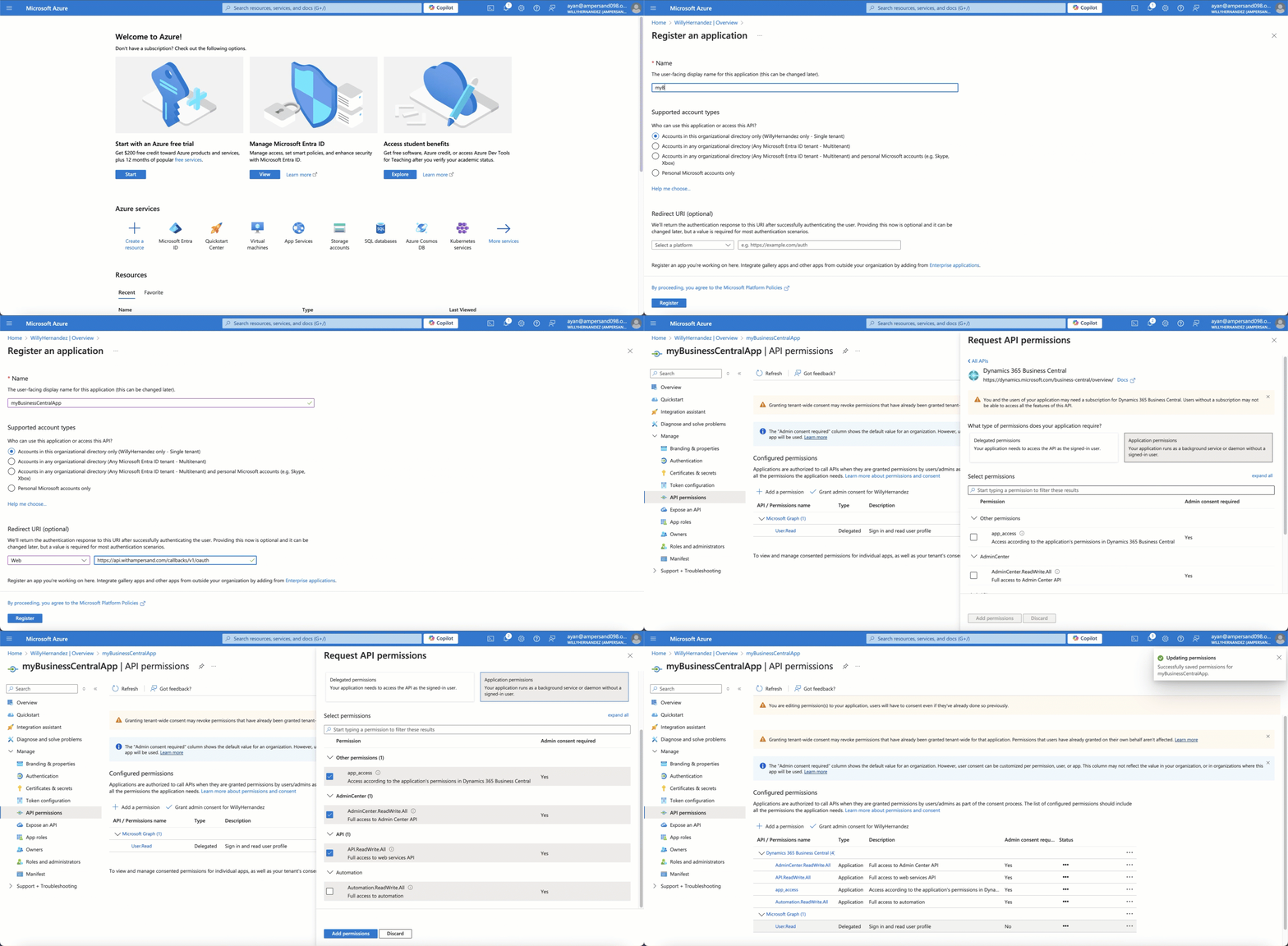
1. Go to the [Microsoft Azure portal](https://portal.azure.com/#home) and sign in with an administrator account from your Microsoft 365 subscription.
2. On the Home page, under **Azure services**, select **Microsoft Entra ID**.
3. In the left navigation pane, select **App registrations**.
4. Click **+ New registration**.
5. Enter Application Details:
* **Name**: Enter a meaningful name for the application.
* **Supported account types**: Select **Accounts in any or this organizational directory**.
6. In the **Redirect URIs** section, enter the **Ampersand** redirect URL: `https://api.withampersand.com/callbacks/v1/oauth`.
7. In the left navigation panel, select **API permissions** > **Add a permission**.
8. Under the **APIs my organization uses** tab, select **Microsoft Dynamics 365 Business Central**.
9. Select the applicable permissions.
 ### Obtain Client ID and Client Secret
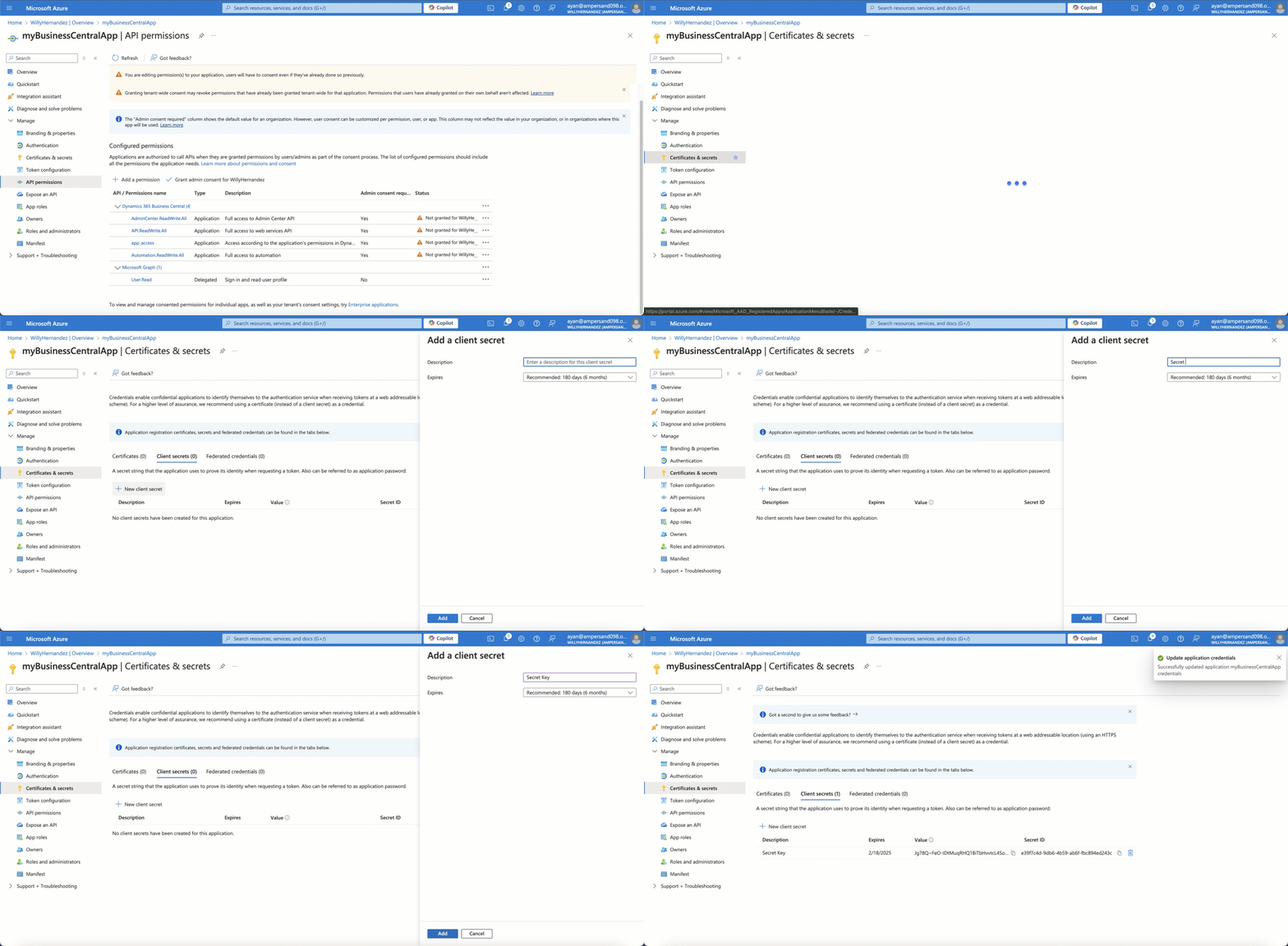
1. On the **Overview** page, you'll find the **Application (client) ID**. Copy it.
2. In the left navigation pane, select **Certificates & secrets**.
3. Click **+ New client secret**, provide a description and expiration period, then click **Add**. Copy the client secret value.
### Obtain Client ID and Client Secret
1. On the **Overview** page, you'll find the **Application (client) ID**. Copy it.
2. In the left navigation pane, select **Certificates & secrets**.
3. Click **+ New client secret**, provide a description and expiration period, then click **Add**. Copy the client secret value.
 ## Add Your Dynamics 365 CRM App Info to Ampersand
1. Log in to your [Ampersand Dashboard](https://dashboard.withampersand.com).
2. Select the project where you want to create a Dynamics 365 CRM integration.
## Add Your Dynamics 365 CRM App Info to Ampersand
1. Log in to your [Ampersand Dashboard](https://dashboard.withampersand.com).
2. Select the project where you want to create a Dynamics 365 CRM integration.
 3. Select **Provider Apps**.
4. Select **Dynamics 365** from the **Provider** list.
5. Enter the previously obtained **Client ID** in the **Client ID** field and the **Client Secret** in the **Client Secret** field.
3. Select **Provider Apps**.
4. Select **Dynamics 365** from the **Provider** list.
5. Enter the previously obtained **Client ID** in the **Client ID** field and the **Client Secret** in the **Client Secret** field.
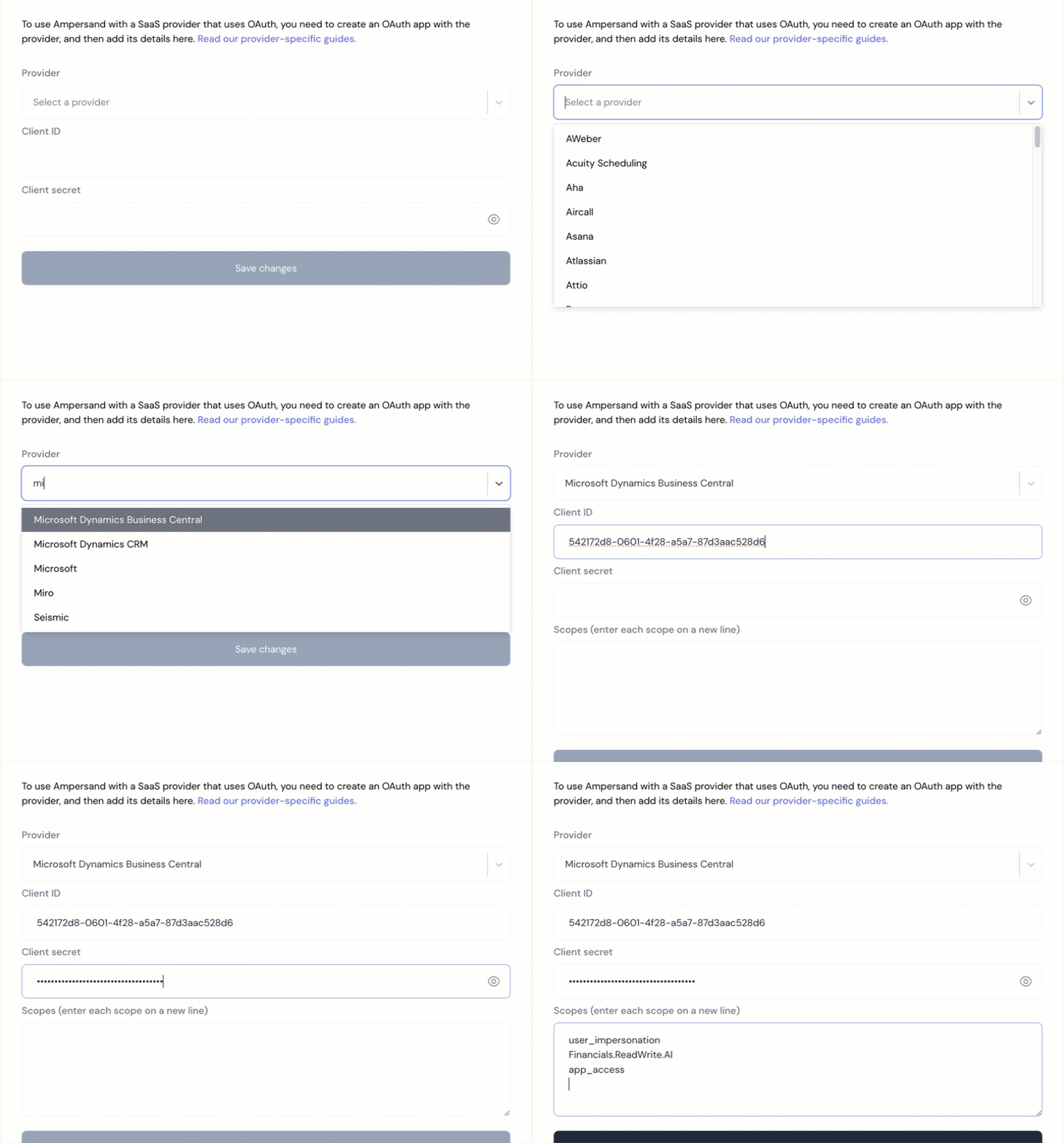 6. Click **Save Changes**.