> ## Documentation Index
> Fetch the complete documentation index at: https://ampersand-24eb5c1a-feat-always-enabled-object.mintlify.site/llms.txt
> Use this file to discover all available pages before exploring further.
# Zoom
## What's Supported
### Supported Actions
This connector supports:
* [Read Actions](/read-actions), including full historic backfill. Please note that incremental read is not supported, a full read of the Zoom instance will be done for each scheduled read.
* [Write Actions](/write-actions).
* [Proxy Actions](/proxy-actions), using the base URL `https://api.zoom.us`.
### Supported Objects
The Zoom connector supports writing to and reading from the following objects:
* [activities\_report](https://developers.zoom.us/docs/api/meetings/#tag/reports/GET/report/activities) (read only)
* [archive\_files](https://developers.zoom.us/docs/api/meetings/#tag/archiving/GET/archive_files) (read only)
* [billing\_report](https://developers.zoom.us/docs/api/meetings/#tag/reports/GET/report/billing) (read only)
* [device\_groups](https://developers.zoom.us/docs/api/meetings/#tag/devices/GET/devices/groups) (read only)
* [devices](https://developers.zoom.us/docs/api/meetings/#tag/devices/GET/devices) (read and write)
* [h323\_devices](https://developers.zoom.us/docs/api/meetings/#tag/h323-devices/POST/h323/devices) (read and write)
* [meeting\_summaries](https://developers.zoom.us/docs/api/meetings/#tag/meetings/GET/meetings/meeting_summaries) (read only)
* [phones](https://developers.zoom.us/docs/api/meetings/#tag/sip-phone/GET/sip_phones/phones) (read only)
* [tracking\_fields](https://developers.zoom.us/docs/api/meetings/#tag/tracking-field) (read and write)
## Before You Get Started
To connect Zoom with Ampersand, you will need [a Zoom Account](#create-a-zoom-account).
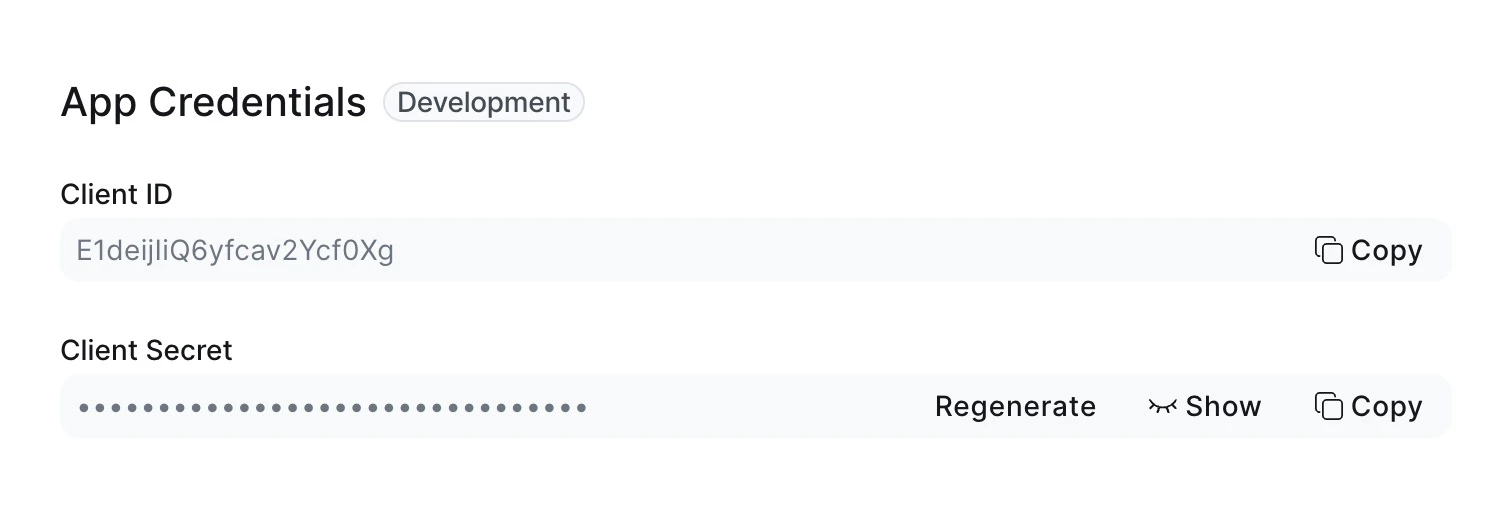
Once your account is created, you'll need to configure an app in Zoom and obtain the following credentials from your app:
* Client ID
* Client Secret
You will use these credentials to connect your application to Ampersand.
### Create a Zoom Account
Here's how you can sign up for a Zoom account:
1. Go to the [Zoom Sign Up page](https://zoom.us/signup) and create an account.
2. Sign up using your preferred method.
### Creating a Zoom App
Follow the steps below to create a Zoom app and add the Ampersand redirect URL:

1. Log in to your [Zoom Marketplace](https://marketplace.zoom.us/) account.
2. Click on **Develop** in the top-right corner and select **Build App**.
3. Choose the type of app you want to create. For this integration, select **General App**.
4. Click **Create**.
5. In the **OAuth Information** section, enter the Ampersand redirect URL: `https://api.withampersand.com/callbacks/v1/oauth`.
 6. Click **Continue** and go to **Scopes**.
7. Select the applicable scopes for your app.
8. Click Continue and in the Add your app section, click Add app to finalize your app setup.
You can find the **Client ID** and **Client Secret** in the **Basic Information** section of the app. You'll use these credentials to connect your app to [Ampersand](#add-your-zoom-app-info-to-ampersand).
6. Click **Continue** and go to **Scopes**.
7. Select the applicable scopes for your app.
8. Click Continue and in the Add your app section, click Add app to finalize your app setup.
You can find the **Client ID** and **Client Secret** in the **Basic Information** section of the app. You'll use these credentials to connect your app to [Ampersand](#add-your-zoom-app-info-to-ampersand).
 ### Add Your Zoom App Info to Ampersand
1. Log in to your [Ampersand Dashboard](https://dashboard.withampersand.com).
2. Select the project where you want to create a Zoom integration.
### Add Your Zoom App Info to Ampersand
1. Log in to your [Ampersand Dashboard](https://dashboard.withampersand.com).
2. Select the project where you want to create a Zoom integration.
 3. Select **Provider apps**.

4. Select *Zoom* from the **Provider** list.
5. Enter the previously obtained *Client ID* in the **Client ID** field and the *Client Secret* in the **Client Secret** field.
3. Select **Provider apps**.
4. Select *Zoom* from the **Provider** list.
5. Enter the previously obtained *Client ID* in the **Client ID** field and the *Client Secret* in the **Client Secret** field.
 6. Click **Save changes**.